Software Updates
BT-45C/45CS Headset
BT-45C and the Headset of BT-45CS Firmware update tool Release Note (Ver1.2.1)
1. Introduction
This update application includes the firmware update application.
Update the firmware of BT-45C to V1.2.1 by executing this installer to install and then executing the firmware update application.
2. Target product
BT-45C and the Headset of BT-45CS before firmware version V1.0.0.
Check here for how to check the firmware version.
3. Release history
| Version | Date | Update contents | |
|---|---|---|---|
| 1.2.1 | 2022. 10.27 |
|
|
4. Advance preparation
1. Install the firmware update tool
Please prepare the following.
- Target product: BT-45C (or Headset of BT-45CS)
- DisplayPort over USB Type-C compatible Windows computer (Windows11 Enterprise or Pro)
- Installer: BT-45C_UpdateTool_v121_Installer.msi
This update application includes the firmware update application.
Please download from "8. How to get".
Download it to any location and execute "BT-45C_UpdateTool_v121_Installer.msi"
After updating the firmware the application can be uninstalled from the PC.
The update application cannot be used on a PC without a monitor, so be sure to update on a PC with a monitor.
When executing the installer, the following screen will be displayed.
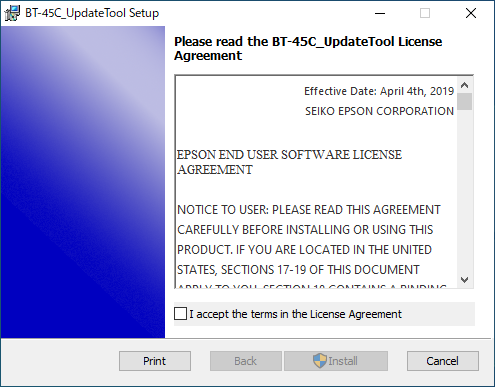
Please read the License Agreement and if you accept then select the check box.

After selecting the check box to accept the license agreement the "Install" button will become enabled.
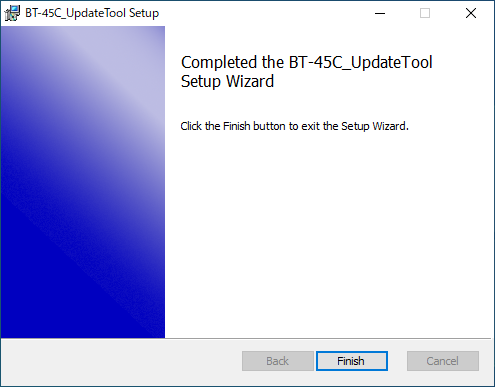
After the installation is complete, click the "Finish" button to exit the installer.
After updating the firmware you can uninstall the EPSON BT-45C update application.
2. Install the Device Driver for Firmware Updates
If you are using the firmware update tool for the first time, you must install the device driver.
Download and install the driver from "Download of device driver for firmware update".
Instructions for installation are provided on the download page.
5. Firmware update procedure
Procedure
-
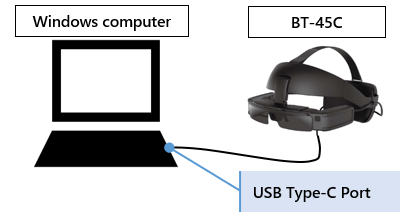
Connect the BT-45C USB-C cable to the Windows PC.
Confirm the display settings, "Multiple display" section is set to "Duplicate displays".
Please ensure that the display setting is not set to "Show only on 1."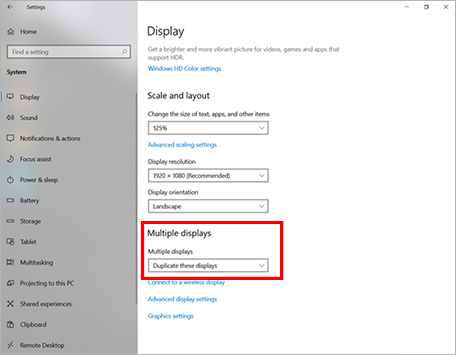
-
Execute "BT-45C_UpdateTool_V1.2.1.exe" installed on the computer.*1
The firmware update application can also be executed from the start menu.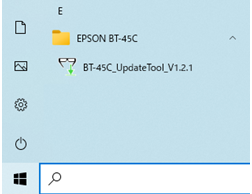
When using the firmware update tool for the first time, the "Connect Timeout (E101)" error may occur.
In this case, please follow the instructions in "4. Preparations - 2. Install the Device Driver for Firmware Updates."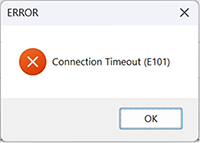
When you run the application, the following window will be displayed on the screen, and when you press the "UPDATE" button, the update will start.*2
Firmware update takes around 1 minute.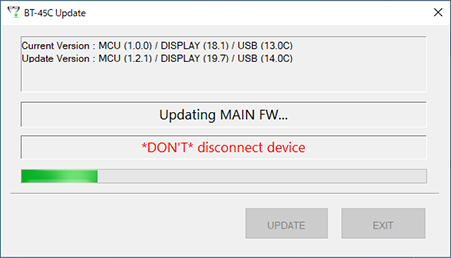
Caution: During firmware update, do not disconnect BT-45C from Windows computer. When disconnected, device might not operate correctly.*1 Please close all other applications before executing this update application.
*2 If the BT-45C is not connected correctly or the battery is too low, then the "UPDATE" button may be disabled. -
When you see the following message, remove the BT-45C from computer and reconnect it to computer USB Type-C port.
Caution: firmware update has not been completed yet.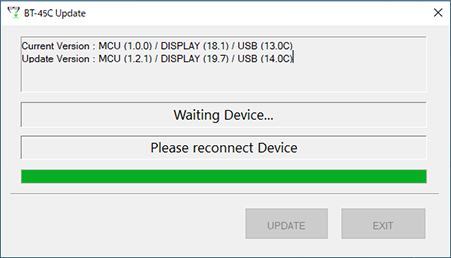
-
When the firmware update is completed, the following dialog will be displayed.
Click "OK" in the dialog and press the "EXIT" button to exit the update application.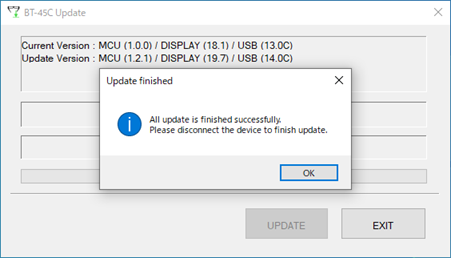
* If the error dialog is appeared, keep connect the windows computer and the BT-45C.
Then back to Step 2. -
Disconnect BT-45C from Windows computer.
The firmware of BT-45C updated will active from next working.
6. How to check firmware version
Procedure
- Connect the plug of BT-45C to USB Type-C Port on Windows computer.
- Execute "BT-45C_UpdateTool_V1.2.1.exe" *1
The firmware version is indicated on the below dialog.
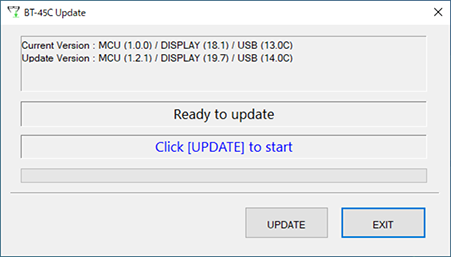
*1 Please turn off the other applications before executing this update application.
7. Troubleshooting
Case1 After pressing the "UPDATE" button, "E101" is displayed and the update cannot be performed.
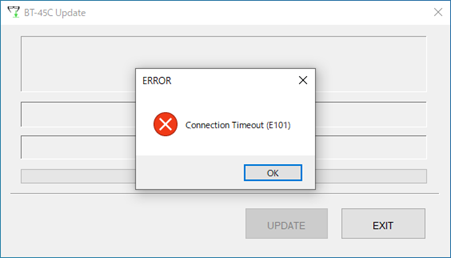
Possible cause:
The software required for the update is not installed.
Solution:
Download and install the driver from "Download of device driver for firmware update".
Case2 After pressing the "UPDATE" button, "E021/E043/E044" is displayed, and the update cannot be performed.
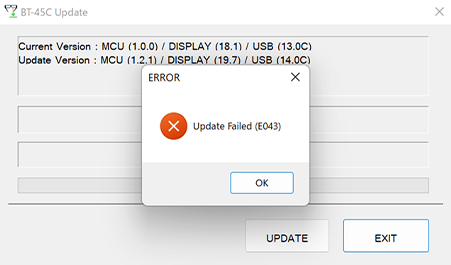
Possible cause:
Communication failed and update was not completed.
Solution:
Exit the firmware update application and start over from step 2.
* Do not remove the BT-45C from the Windows computer at this time.
Case3 BT-45C after updating firmware does not show images from the connected device, which was confirmed the fine connection with BT-45C.
Possible cause1:
BT-45C doesn't show the image by "Tap to hide images" feature enabled.
(This feature can be used MOVERIO Link Pro.)
Solution:
Tap the BT-45C to release the hiding images.
Procedure
Tap twice the left-side of headset by two fingers.
Expect result
BT-45C show the images by releasing the hiding.
Possible cause2:
Updating was failed.
Solution:
Please perform the update procedure again.
8. How to get
You can download the Firmware Update Tool after that you agree the Software License Agreement and the Epson EU Data Agreement with Users.

